Drawerly help center
Set up Drawerly in a few minutes. Need a hand? Email support@centubo.com.
1. Install the app
- Open Drawerly on the Shopify App Store and click Install.
- Approve the permissions. Drawerly opens inside your Shopify admin.
2. Customize your cart
- On Home, click Set up cart (or open Customize in the app menu).
- Click a block on the left to edit it: Rewards progress bar, Upsells, Add-ons, Empty message and the others. The preview on the right shows the cart as shoppers will see it.
- Click Save in the save bar.
- The preview uses what you are editing; your store uses what you saved.
3. Turn on the app embed
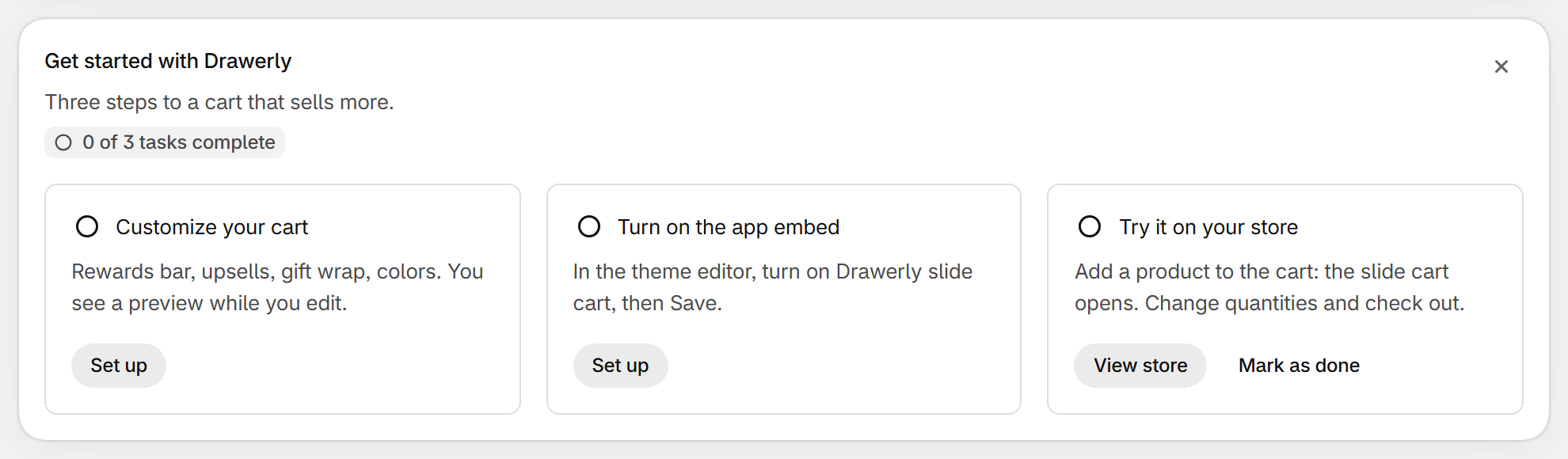
- On Home, under Get started with Drawerly, click Set up next to Turn on the app embed.
- The theme editor opens. Turn on Drawerly slide cart and click Save.
- Add a product to the cart on your store: the slide cart opens.
- In Customize cart > General, Use Drawerly as my cart must be on. Turn it off at any time to bring back your theme's cart.
Rewards progress bar
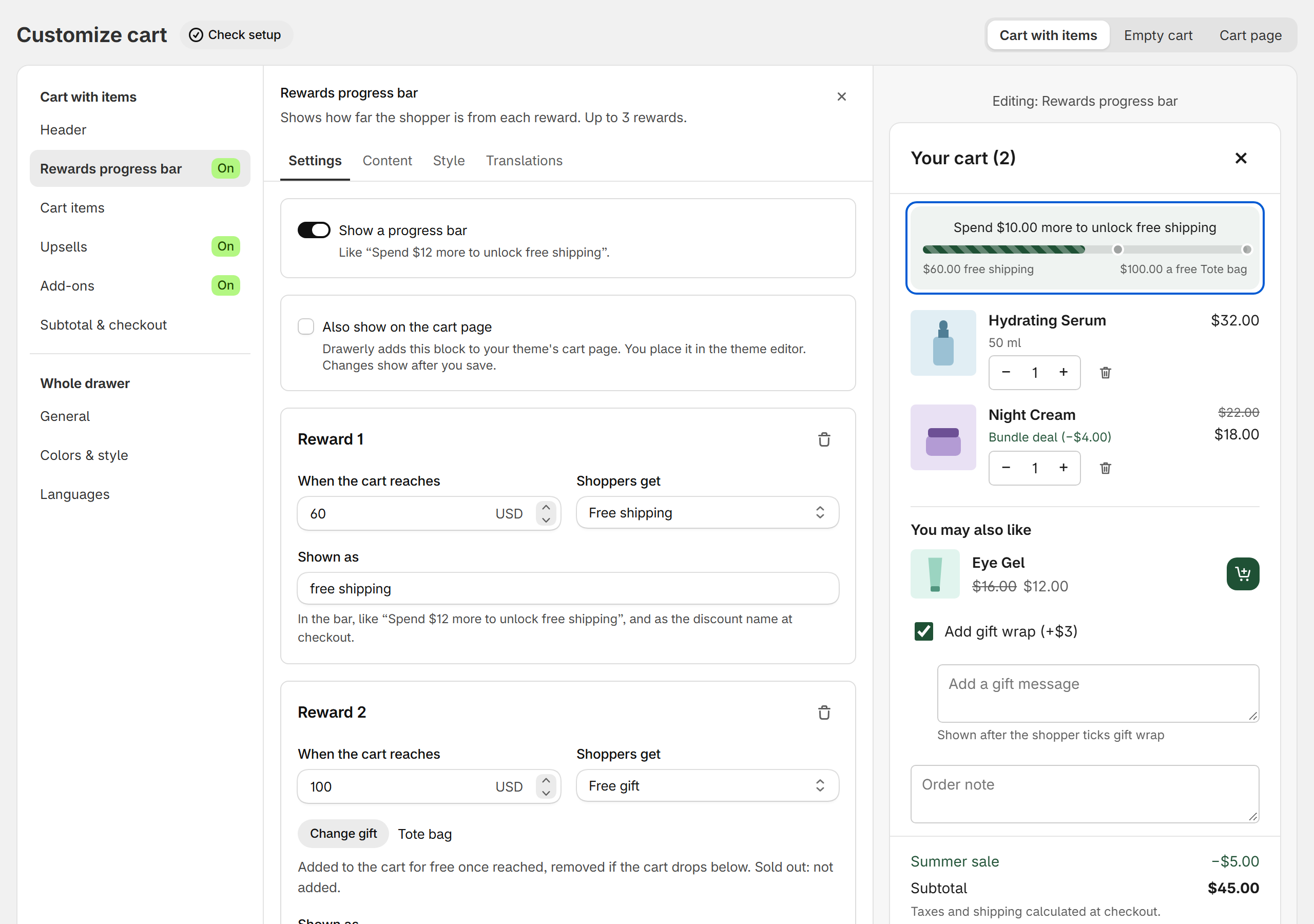
- Open the Rewards progress bar block and turn on Show a progress bar.
- For each reward (up to 3), set When the cart reaches and what Shoppers get: Free shipping, % off the order, Amount off the order, Free gift, or Bar only (I set up the discount myself).
- Set how the reward is Shown as, like “free shipping”. It appears in the bar and as the discount name at checkout.
- Click Save.
- The amount is the cart subtotal before discounts; a free gift doesn't count towards it.
- Drawerly applies the rewards with one automatic discount, “Drawerly cart rewards”, which you can see in Shopify admin > Discounts. Clicking it opens this block in Drawerly.
- A free gift is added to the cart once the reward is reached. Gift Cards can't be used as gifts, because Shopify doesn't discount them.
Upsells
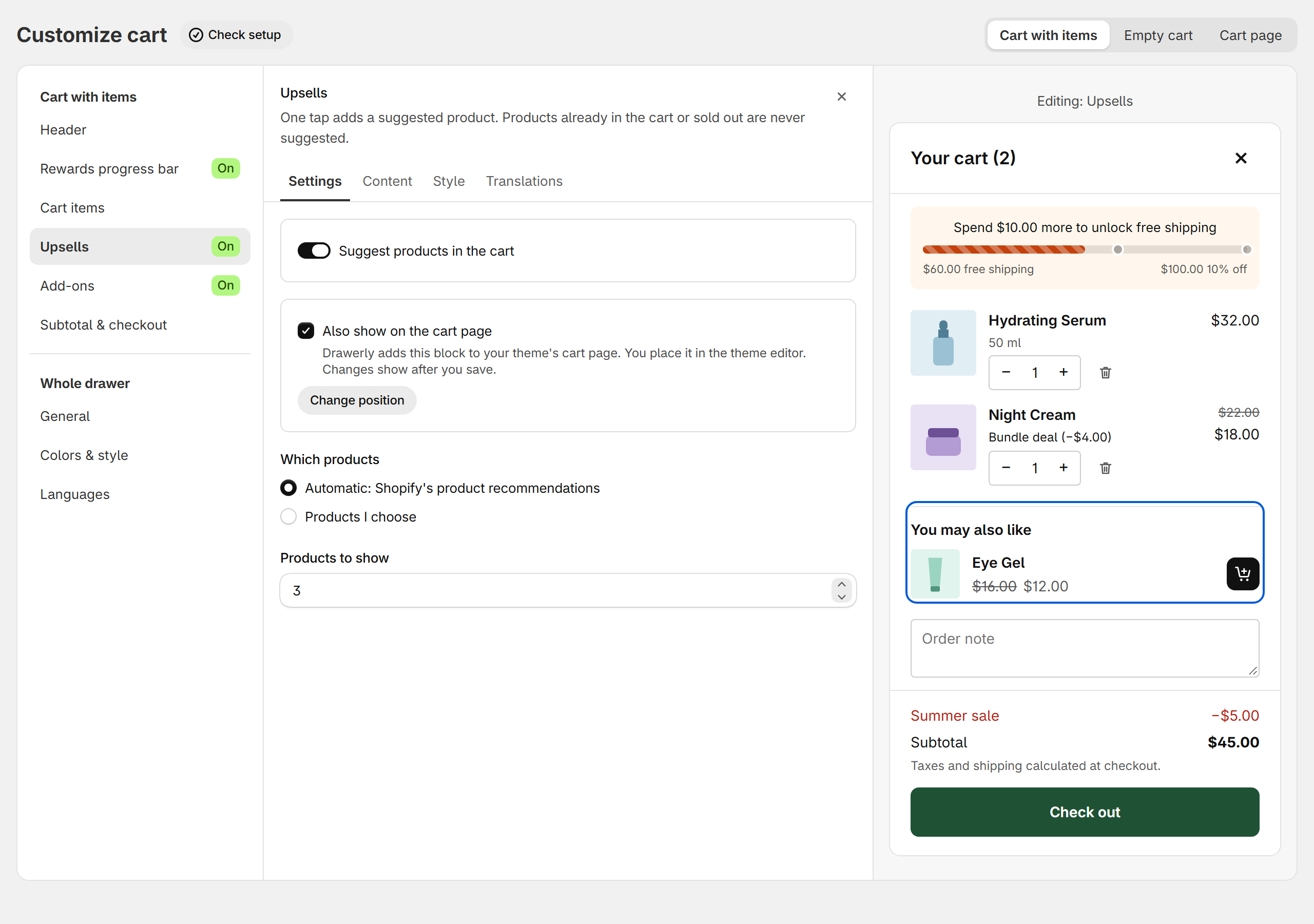
- Open the Upsells block and turn on Suggest products in the cart.
- Under Which products, choose Automatic: Shopify's product recommendations, or Products I choose and click Browse products (up to 8).
- Set Products to show and click Save.
- Products already in the cart or sold out are never suggested. Shoppers add one with the cart button next to it.
Gift wrap, gift message and order note
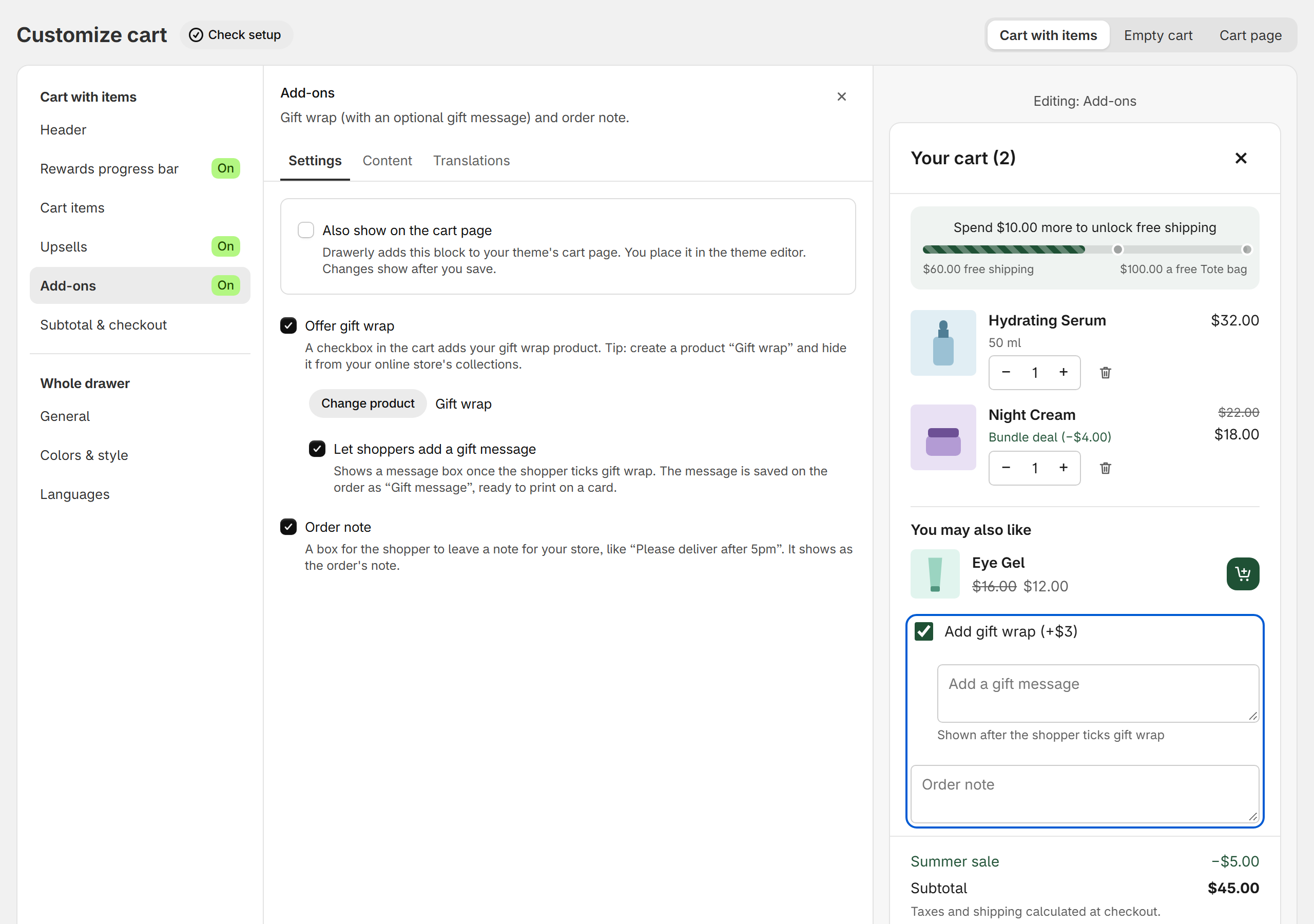
- Create a product “Gift wrap” in Shopify, with the price you want, and hide it from your online store's collections.
- Open the Add-ons block, turn on Offer gift wrap and pick that product.
- Turn on Let shoppers add a gift message if you want a message box once gift wrap is ticked.
- Turn Order note on or off, then click Save.
- The gift message is saved on the order as “Gift message”, ready to print on a card. The order note shows as the order's note.
Empty cart
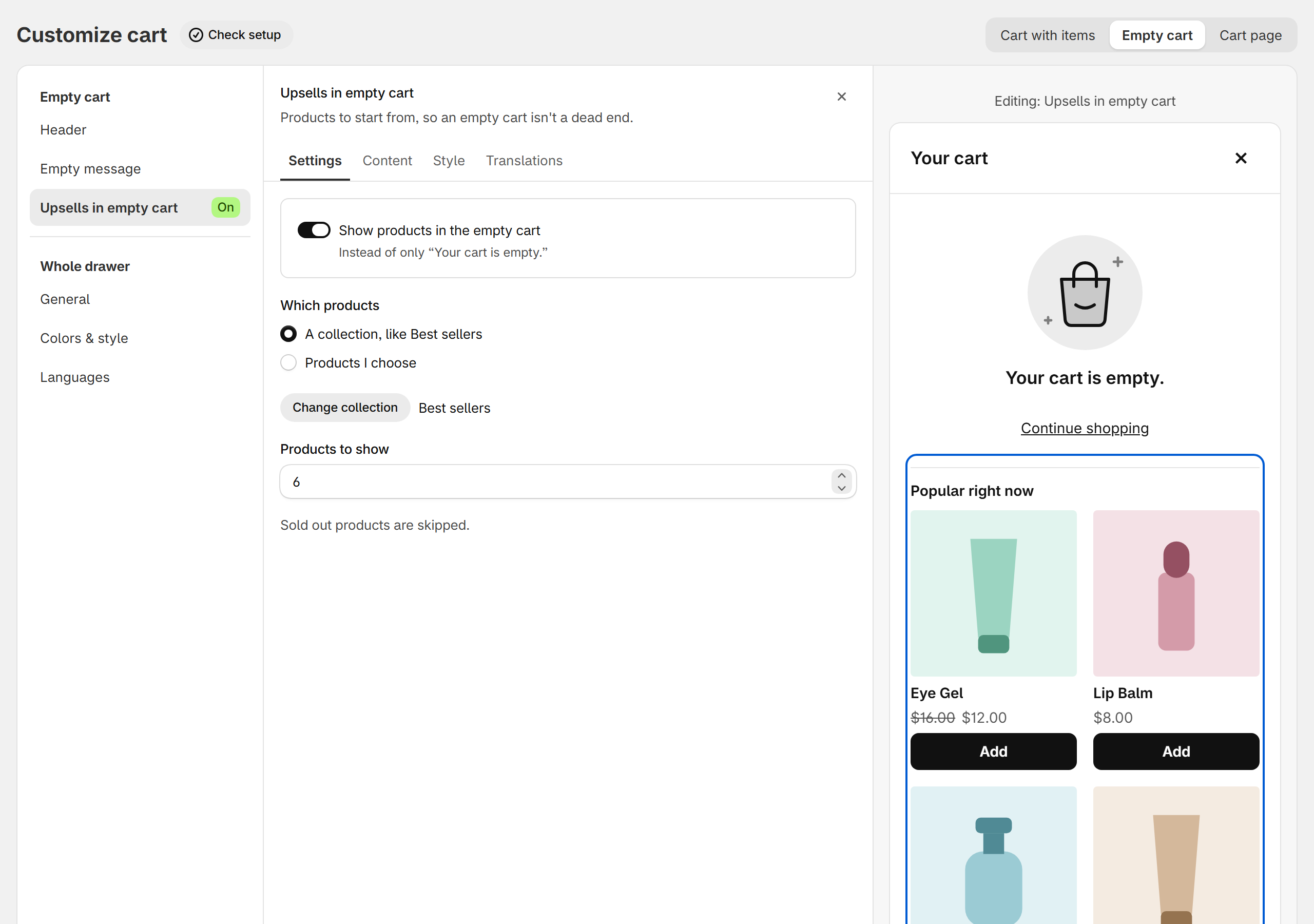
- In the Empty message block, choose the image (the built-in one, your own or none), the message and where Continue shopping goes to: close the cart, your home page, all products, a collection, or a link you type.
- In Upsells in empty cart, turn on Show products in the empty cart and pick a collection or your own products.
Show blocks on the cart page
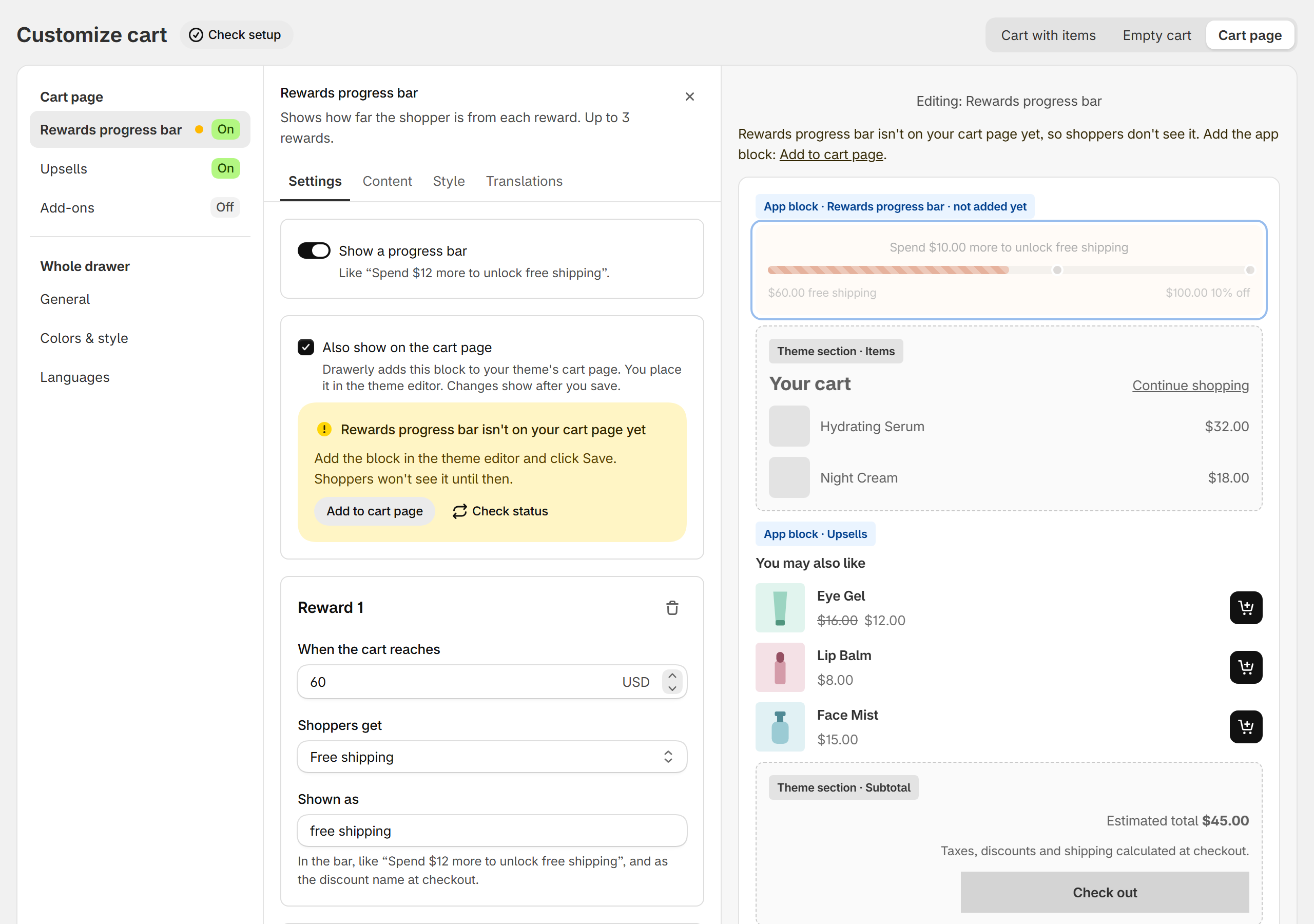
- In the Rewards progress bar, Upsells or Add-ons block, tick Also show on the cart page and click Save.
- Click Add to cart page. The theme editor opens on your cart page: add the Drawerly block and click Save.
- Back in Drawerly, click Check status. The warning disappears once the block is found.
- Each cart page block has Top spacing and Bottom spacing in the theme editor.
Header, cart items and checkout
- Header holds the cart's title, like “Your cart”, in its Content tab.
- Cart items lists the products in the cart with quantity buttons, a remove icon, discounts and prices. You can change its colors in its Style tab.
- Subtotal & checkout is the bottom of the cart: order discounts, the subtotal, a line like “Taxes and shipping calculated at checkout.” and the checkout button. Edit its texts in Content and its colors in Style.
General settings
- In General: Use Drawerly as my cart turns the slide cart on or off. Open the cart when a product is added opens it right after a shopper adds a product; turn it off if you only want it to open from the cart icon. Opens from sets the side, Right or Left.
Colors and languages
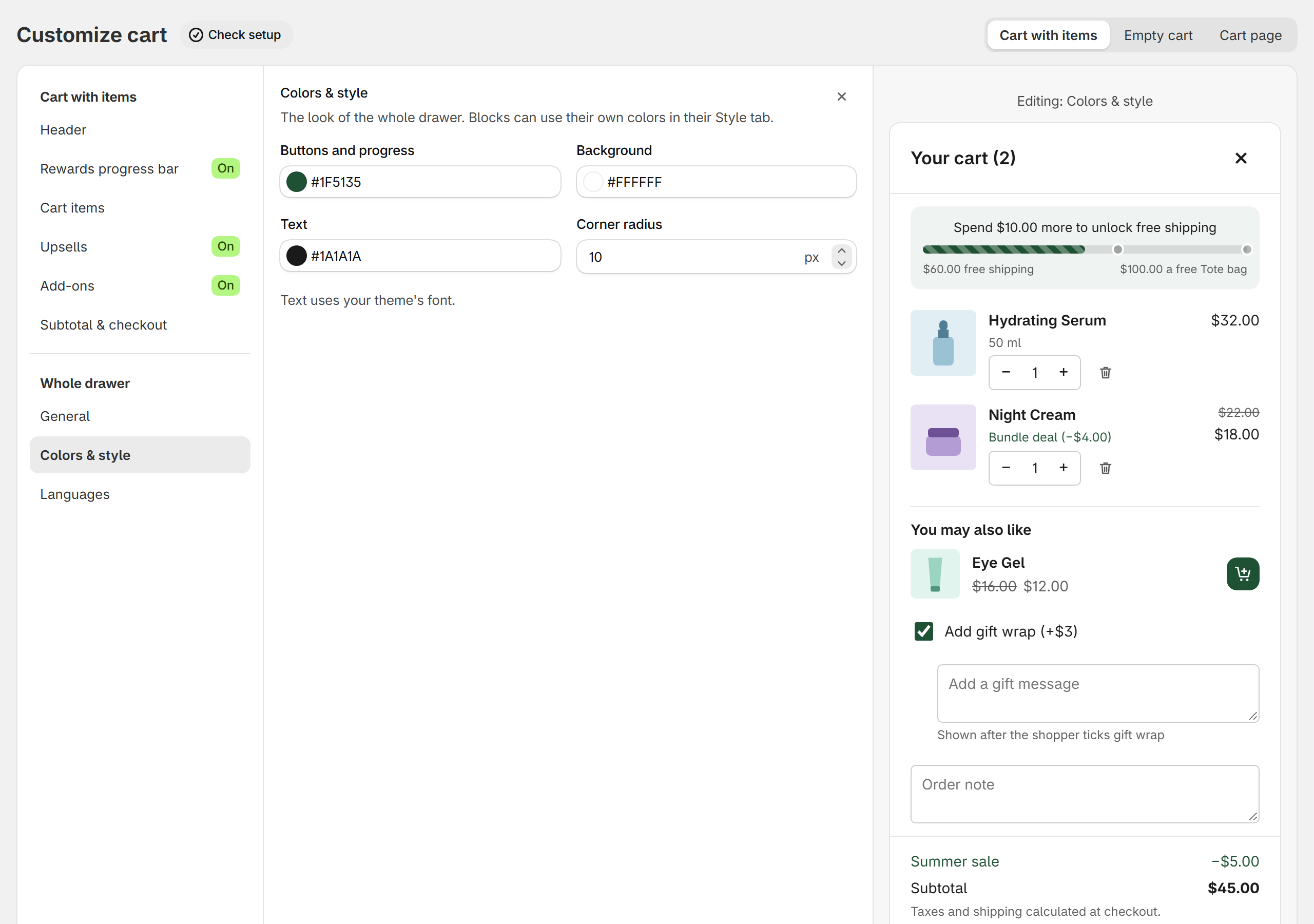
- In Colors & style, set the button and progress color, background, text color and corner radius. Each block can use its own colors in its Style tab.
- The cart's texts are built in for 9 languages. In Languages, add the languages you want to write your own texts for, then fill them in each block's Translations tab.
Check setup
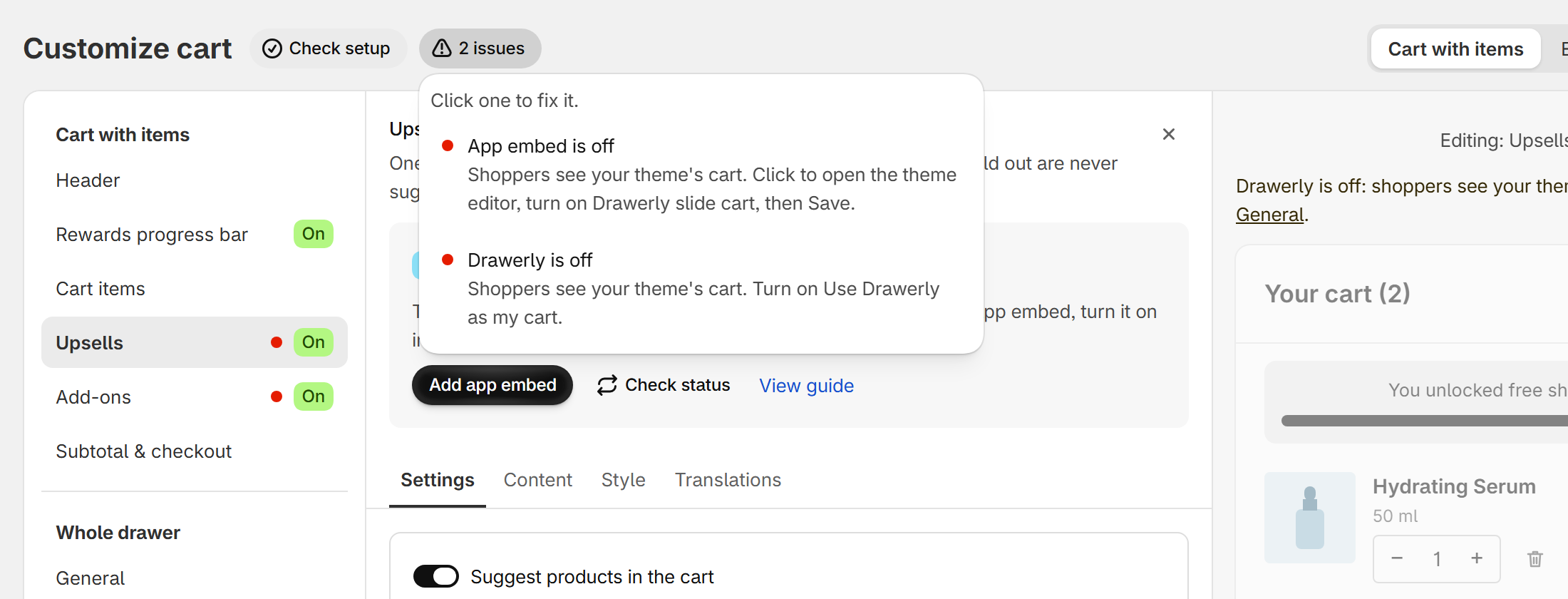
- Customize cart checks your setup and lists what needs attention: a red dot when something stops a feature from working (the app embed is off, a product was deleted or sold out), a yellow dot when a block is missing from your cart page. Click an issue to go where you fix it.
Results
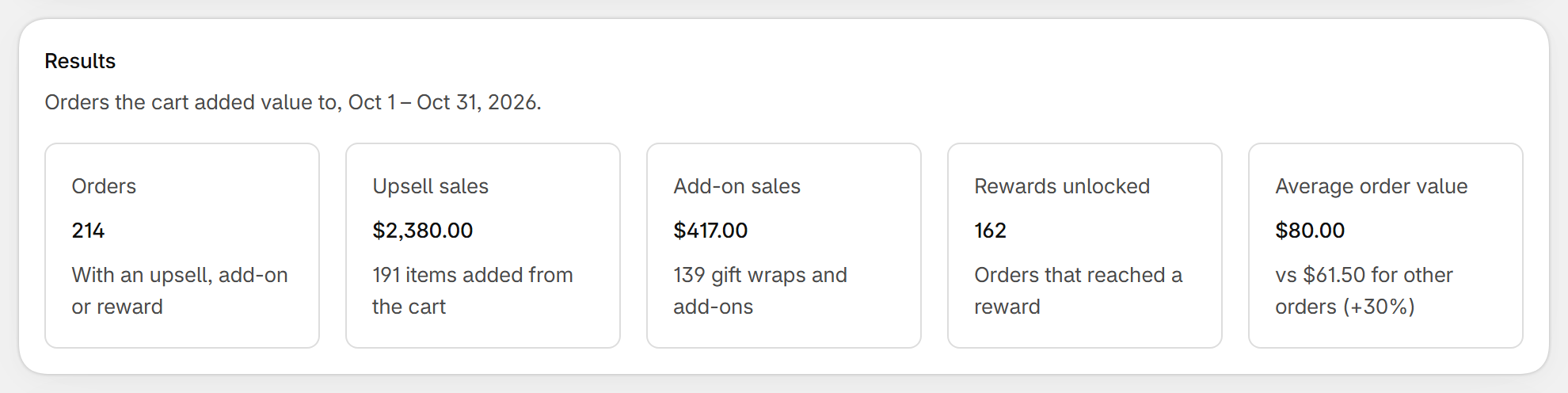
- Home shows the orders your cart added value to this month, with Upsell sales, Add-on sales, Rewards unlocked and the Average order value of those orders.
- An order counts when it includes an upsell or add-on added from the cart, or reached a reward. Cancelled orders are taken out.
Turn off or uninstall
- To pause Drawerly, turn off Use Drawerly as my cart in Customize cart > General. Your theme's cart comes back right away.
- To remove it, uninstall Drawerly from Settings > Apps. The slide cart goes away right away, and your cart settings and results are deleted.
FAQ
Does Drawerly work with my theme?
Drawerly is a theme app embed, so you turn it on in the theme editor without editing code. It opens in place of your theme's cart when a shopper adds a product. If something looks off on your theme, email us and we'll help.
How do the rewards work at checkout?
Drawerly creates one automatic discount, “Drawerly cart rewards”, in Discounts. It gives free shipping, a % or amount off the order, or the free gift once the cart reaches your amount. Choose “Bar only” if you prefer to set up the discount yourself.
What if a shopper removes the free gift?
The rewards bar shows an Add your free gift button, so they can add it back. If Shopify can't add the gift (for example it is sold out), the bar says why.
Can I turn it off quickly?
Yes. In Customize cart > General, turn off Use Drawerly as my cart. Your theme's cart comes back right away.
Which languages does the cart speak?
Its texts are built in for English, French, German, Spanish, Italian, Portuguese (Brazil), Dutch, Japanese and Vietnamese. Under Languages you can write your own texts for any language your store sells in.
Does Drawerly track my shoppers?
No. The cart does not set cookies and sends nothing about shoppers to our servers. It talks only to your store's Shopify cart.
How much does it cost?
Drawerly is free during launch, with every feature. We will tell you at least 30 days before any pricing starts.